Please CLICK below ADD to make prosper this BLOG
Showing posts with label windows XP tips and tips. Show all posts

Friday, April 24, 2009

How to do E-mail time synchronisation with ISP..?


Do you sometimes get confused when using your e-mail client (like outlook express, microsoft outlook, thunderbird, eudora etc) your e-mail gets sent (goes to sent items) view screenshot:


(Here is the LINK to clear view)
It gets sent from your side but could not reach the receiving end ? or recieves there but the sent time is incorrect, In that case you can try synchronising your SYSTEM TIME with your ISP's DNS server time, the steps are as follows:
<-----step1----->
<-----step2----->
<-----step3----->

Following these steps is one of the ways to solve your e-mail sending problem through an e-mail client if the issue is of time synchronisation.

if you have any query, please email me at sunil.babu101@gmail.com or post a msg on the chatroll box on the top right side or you can comment below as well.

posted by SUNIL BABU
Support engineer


Friday, April 17, 2009

How to Block Website in Windows XP.....!


Want to bully your friends by blocking their favorite websites or just want to hide some web pages from your children? Here’s how you can block certain websites on your home computer:

Step 1: Click the Start button and select Run. Type the following text in that Run box:

notepad c:\WINDOWS\system32\drivers\etc\hosts

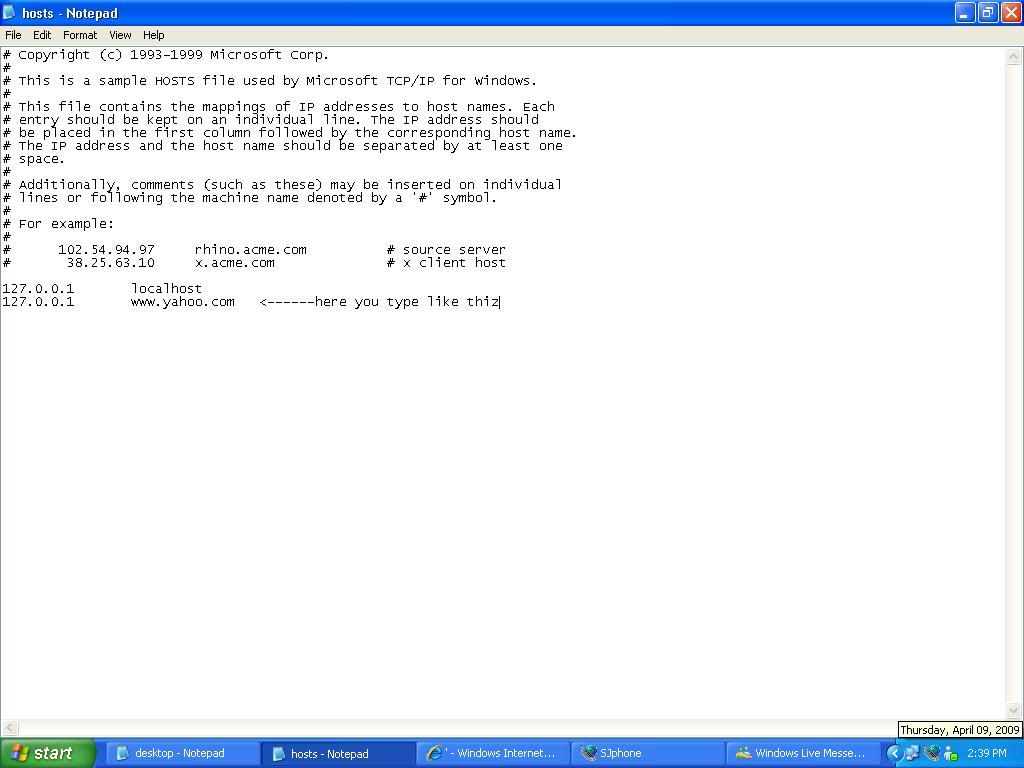
Step 2: You will see a new notepad window on your screen containing some cryptic information. Don’t panic. Just go to the last line of the file, hit the enter key and type the following
(for example):

127.0.0.1 myspace.com
(host file image)
Save the file and exit. That’s it. None of the above sites will now open on your computer.

You can block as many websites as you like with the above technique. If you want to remove the ban later, open the same file as mentioned in Step 1 and delete the above lines.

if you have any problem please post your comment or cat with me on your left chatroll and leave me message thank you

Step by Step Configuration of MRTG on Windows XP ????

• Enable SNMP
Start > Settings > Control Panel > Add or Remove Program >
Add or Remove Programs > Add/Remove Windows Component >
Management and Monitoring Tools > Simple Network Management Protocol.
• Download Perl (www.activestate.com)

1. Double click to start the installation and Next to proceed.
2. To verify the Installation:


(clear view image)

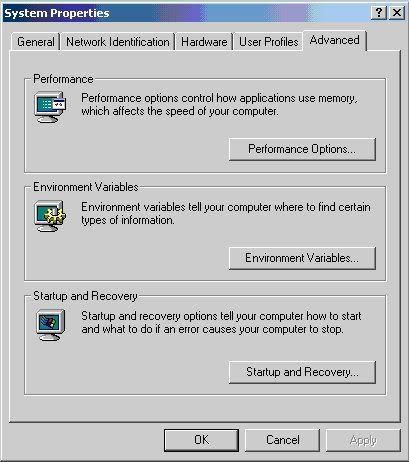
See the path listed under System Variables


(clear view image)

• Download MRTG (www.mrtg.org).
1. WinZip MRTG (preferably in same drive as of Perl)
2. Create another folder “mrtghtml” (can be any sensible name) to hold graph files.
3. Run cfgmake: Run following command on command prompt
c:\mrtg\bin> perl cfgmaker public@ --global "WorkDir: c:\mrtghtml" --output server.cfg.


4. Run Indexmaker: Run following command on command prompt
c:\mrtg\bin> perl indexmaker --output intel510t.htmintel510t.cfg"- -output

intel510t.htm" is the name of the webpage output file. Be sure and use the "htm” extension
"intel510t.cfg" is the name of the configuration file you want to use in making an index of targets

5. Running MRTG: Run following command on command prompt
perl mrtg server.cfg

6. Running MRTG as a Daemon:
Open server.cfg with notepad (C:\mrtg\bin\server.cfg) and add these lines: RunAsDaemon: Yes
Interval: 5


(clear view image)
7. Return to DOS window and run MRTG again and don’t close the window else MRTG will die!!!